
Profiles app allows you to generate a biographical sketch (biosketch) from your personal profile.
Getting Started with Biosketch
1. From a personal profile, click on Export As on the top right and select your desired biographical sketch format from the drop-down menu.
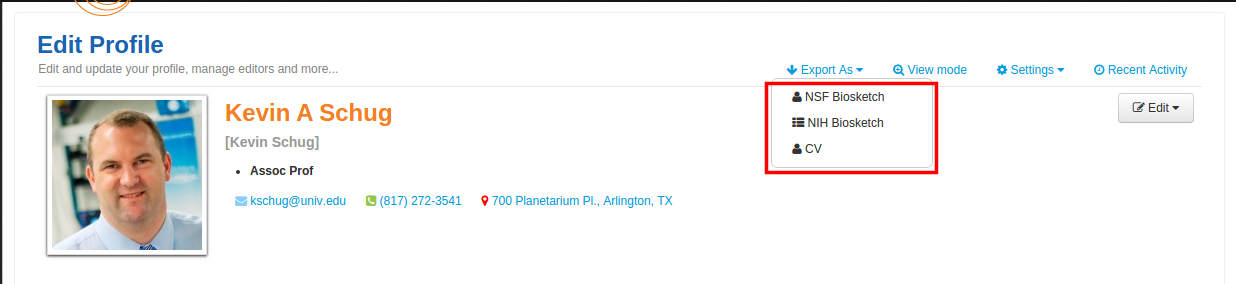
2. This will take you to the biographical sketch generation page for the selected format.
Adding data from the profile to the Biosketch
1. Now you can add records to each section by clicking on the Add button for each section.
2. For example, to add records to Products section, click on Add button visible on top right corner of the section.

3. From the drop-down menu select the corresponding profile section to see the records from that section
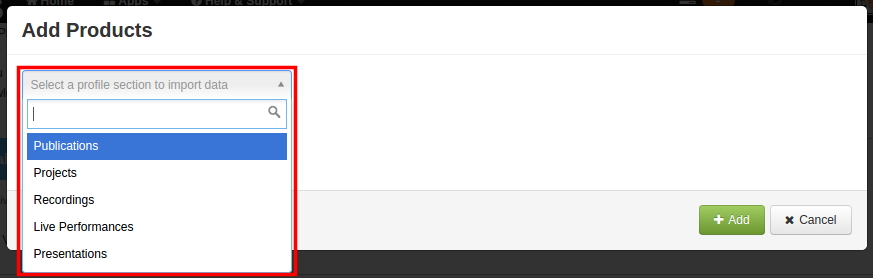
4. Select one or more records to add by clicking on the record and click on Add to add them to the biosketch section
Note: Records already added appear in grey and you cannot select them again.
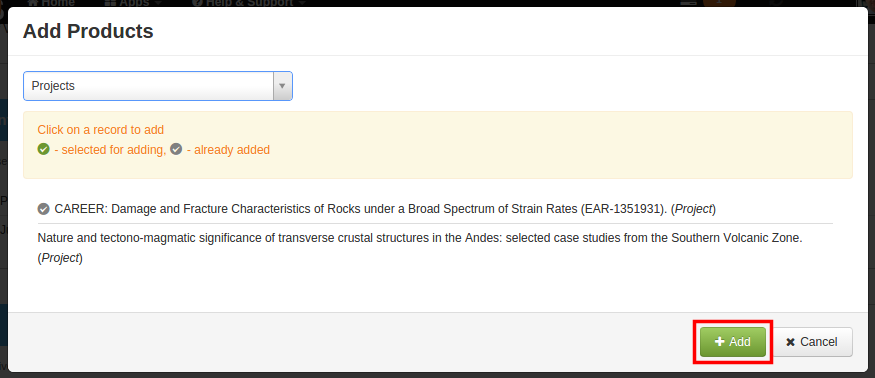
5. You will now see the selected records appear under the selected biographical sketch section.
Removing Records from the profile to the Biosketch
1. For removing any record you may have erroneously added, you can click on the Remove button of that record. For example, to remove a record from Products section, click on Remove button next to that record.

2. Once you are done adding all the records that you want to display in your biographical sketch, scroll to the bottom of the page and click on Save & Preview button.
Note: We encourage you to save and preview intermittently to make sure you don't loose your progress.
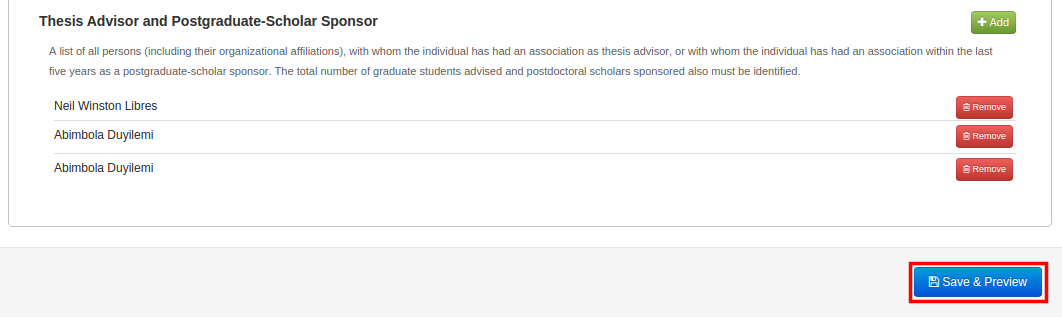
3. Your biographical sketch will be saved and you will be redirected to the preview page.
Note: If you don’t have any phone number or address associated with your profile, a warning is displayed. Though your biographical sketch will be generated there will be blank lines due to missing entries for phone number or address.
Reviewing the Biosketch
1. On the preview page, click on the Save as button and select the format you want to save the file in.

2. The file may be auto-downloaded or you may be prompted to select a destination on your device depending on your browser preferences.
3. The name of the file will be ‘YYMMDD-agency Bio-YourLastname’. For example, if a user with last name Metcalfe downloads his or her NSF biographical sketch file on 16th January 2015, the filename will be ‘20150116-NSF Bio-Metcalfe.pdf’ and ‘20150116-NSF Bio-Metcalfe.docx’ for PDF and MS Word formats respectively.
Known issue:
1. NSF Biosketch doesn't render properly when a downloaded biosketch is opened in Libreoffice or Google Docs. Extra line spaces and other formatting issues are noticed while rendering document. MS Office and Adobe PDF work perfectly. We are working on this issue and will be resolved in a future release.
2. In Products, Other Significant Products and Synergistic Activities, a bullet point appears with indentation when there are no records. We are working on this issue and will be resolved in a future release.
Comments
0 comments
Please sign in to leave a comment.