
Step 1 : First step to add presentation to your profile is to login into mentis.
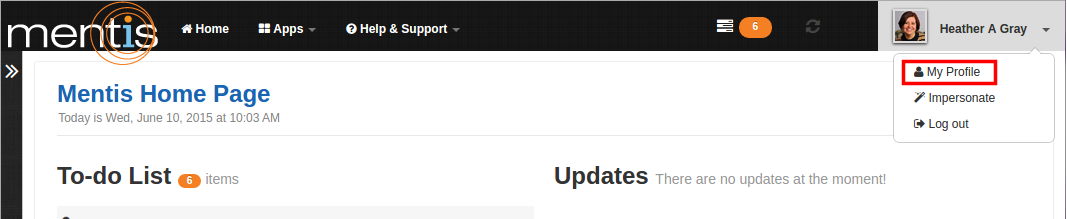
Step 2 : Click on “My Profile” present in the drop-down menu of profile name on top right-hand corner of the webpage.
Step 3 : Click “Add new” present in “Presentations” under “Research”. You can edit or remove particular presentation by using “Edit” present on right-hand side.

Step 4 : In “New Presentations” you can add details in various sub-steps namely “Presentation Title”, “Presentation Info”, “Events”, “Additional Info”, “Visibility” and “Curation”. The introduction consist of instructions about using next and accept to save your information. Each sub-step is interconnected by “Next” and “Previous” button.
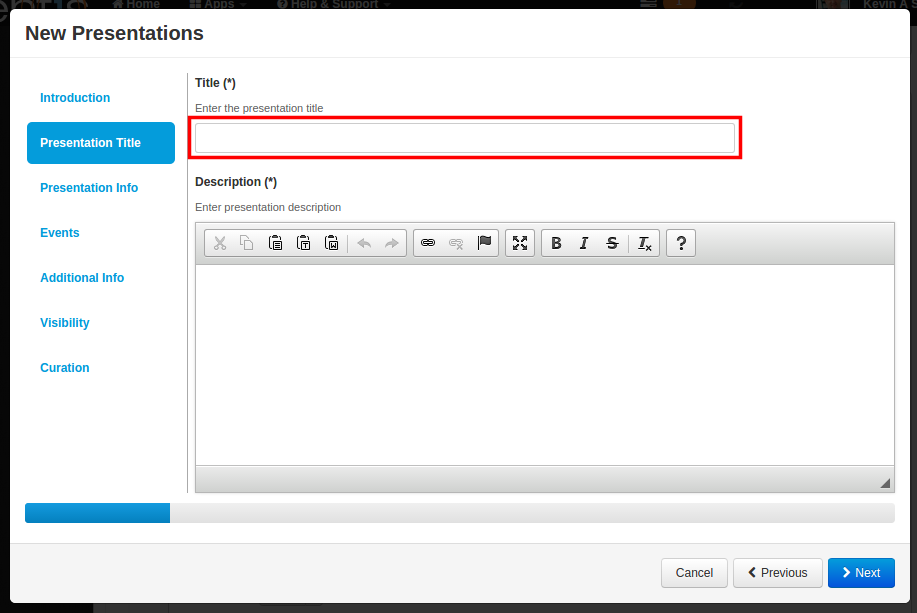
Step 4.1 : In sub-step “Presentation Title” you need to add details in fields like “Title” and “Description”. In “Description” you can copy and paste details from any existing source.
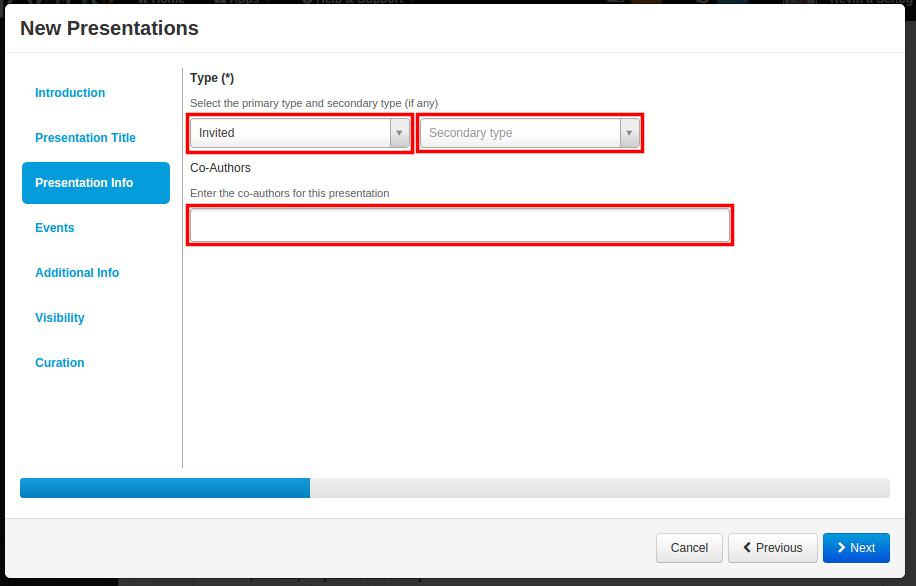
Step 4.2 : In sub-step “Presentation Info” you need to add details in “Type” and “Co-Author” for the presentation. In “Type” you can add details in primary and secondary type from drop-down list.
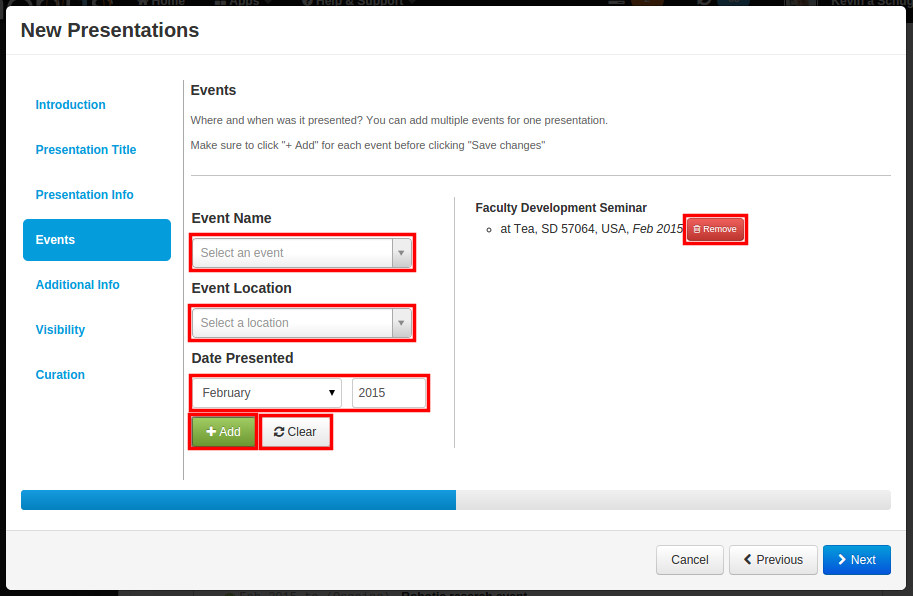
Step 4.3 : In sub-step “Events” you can add details in fields like “Event Name”, “Event Location” and “Date Presented”. You can add details in “Event Name” and “Event Location” from drop-down list. In “Date Presented” you need to add details in month and year format. Click on “+Add” to add event, Always make sure to click “+Add” for each event. You can also clear the entered details by using “Clear”. After clicking “+Add”, the event gets added on right side. You can remove a particular event using “Remove” button.
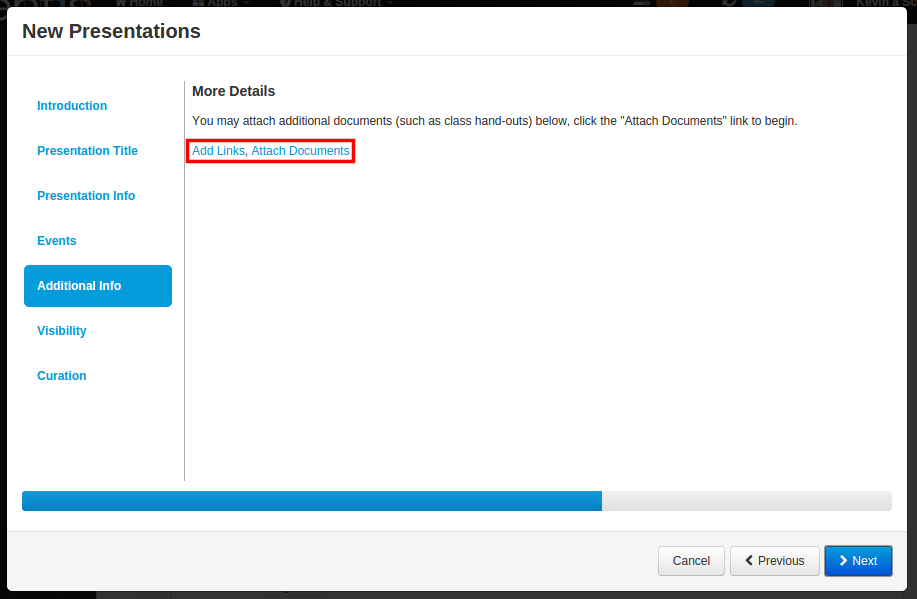
Step 4.4 : In sub-step “Additional Info” you can attach additional documents such as class hand-outs, click the “Attach Documents” link to attach additional documents. Click “Add Links" to add link for existing source which provides more details about particular presentation.
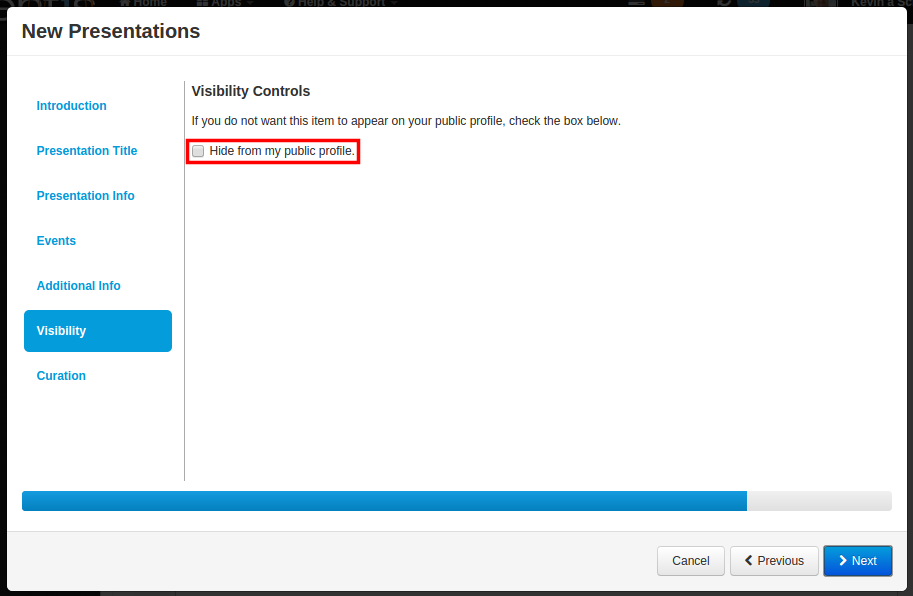
Step 4.5 : In sub-step “Visibility” you can control the visibility of particular presentation, by using checkbox “Hide from my public profile”.
Step 4.6 : In sub-step “Curation” you can select which profile will display this data by moving their name to the right container from profiles which list you as a member of their organization. You can list this information on their profile page.
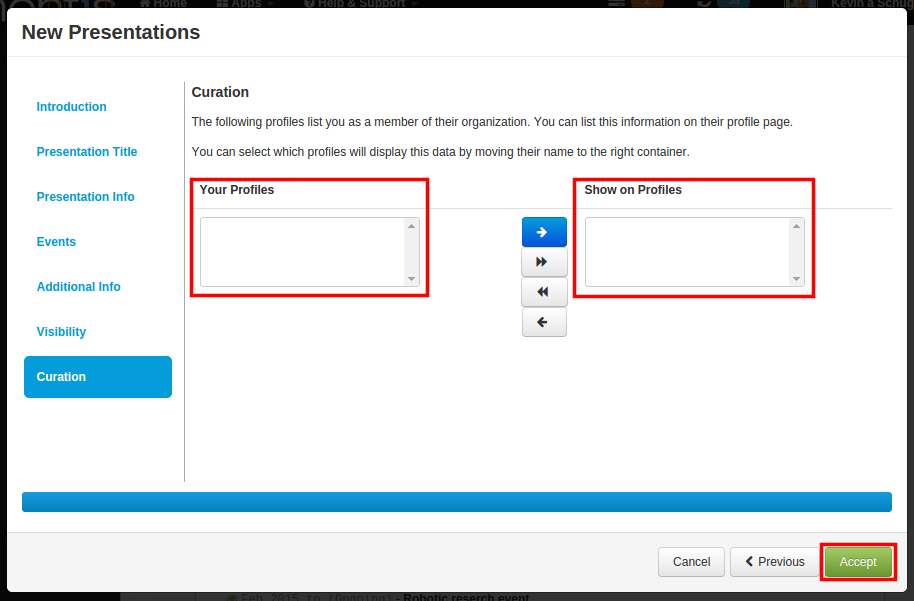
Step 5 : Now click on “Accept”. This would be displayed as your presentation.
Known issue: Presentations with multiple events appear as duplicate records in CV Export and the Explore portal. We are working on this issue and will be resolved in a future release.
Comments
0 comments
Please sign in to leave a comment.