
Step 1 : First step to add publication to your profile is to login into mentis.
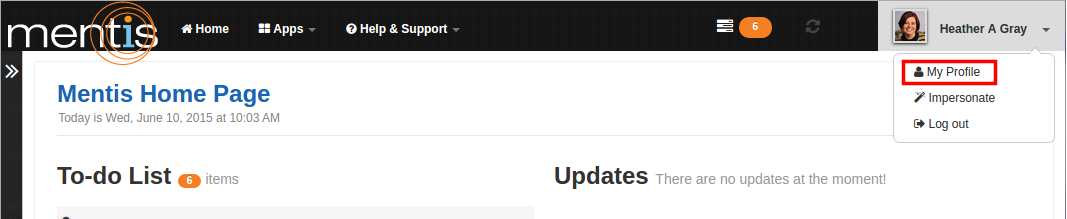
Step 2 : Click on “My Profile” present in the drop-down menu of profile name on top right-hand corner of the webpage.
Step 3 : Click “Add new” present in Publications under “Research”. You can bulk import details from other existing sources. You can bulk import details from other sources like tagged Collaborators, PubMed and UTA ResearchCommons, present in drop-down menu of “Bulk import from text”. You can also edit or remove details entered by using “Edit” button present on the right-hand side of details of particular publication.

Step 4 : In “New Publication” you can add details in various sub-steps namely “Citation”, “Publication Info”, “Additional Info”, “Visibility” and “Curation”. The introduction consist of instructions about using next and accept to save your information. Each sub-step is interconnected by “Next” and “Previous” button.
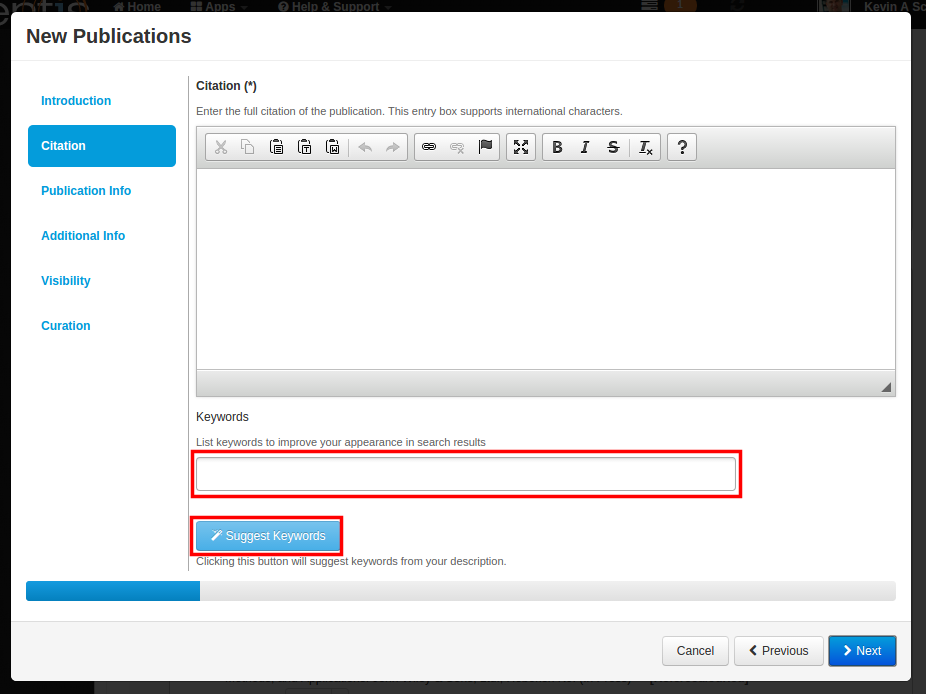
Step 4.1 : In sub-step “Citation” you need to add full citation of the publication in entry box. You can also add keywords to description to improve your appearance in search results. By clicking “Suggest Keywords” button you will be suggested with keywords from your description.
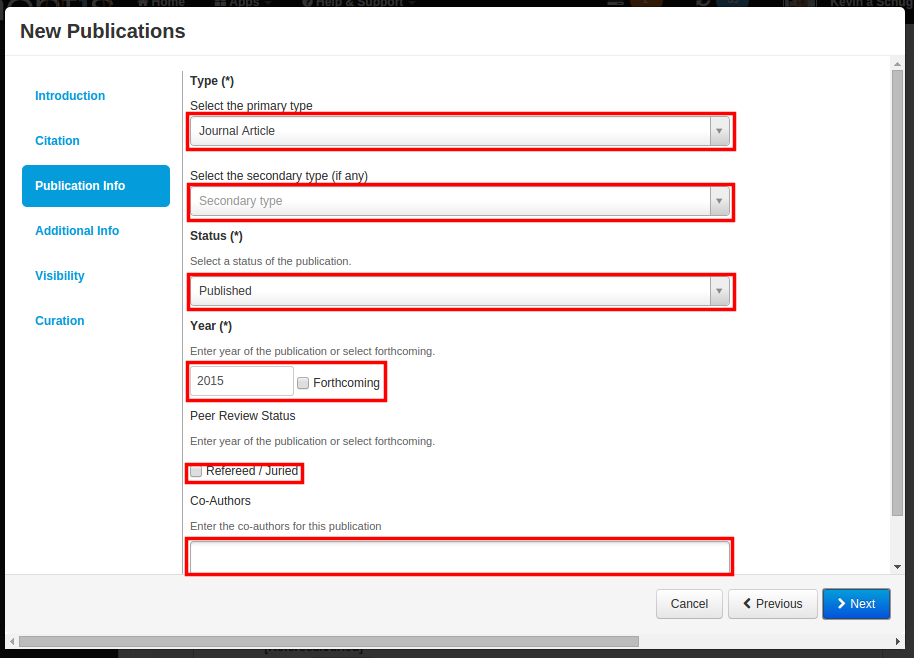
Step 4.2 : In sub-step “Publication Info” you need to add details in fields namely “Type”, “Status”, “Year”,“Peer Review Status” and “Co-Authors”. Except for year you need to add details from drop-down list. “Type” is further classified into “primary type” and “secondary type”(if any), which you can select from drop-down list. You can select status of the publication from drop-down list. In “Year”you need to enter year of the publication. If the year is forthcoming then you can select checkbox “Forthcoming”. You can use “Refereed/Juried” checkbox if applicable. In “Co-Authors” you can add co-authors for the particular publication.
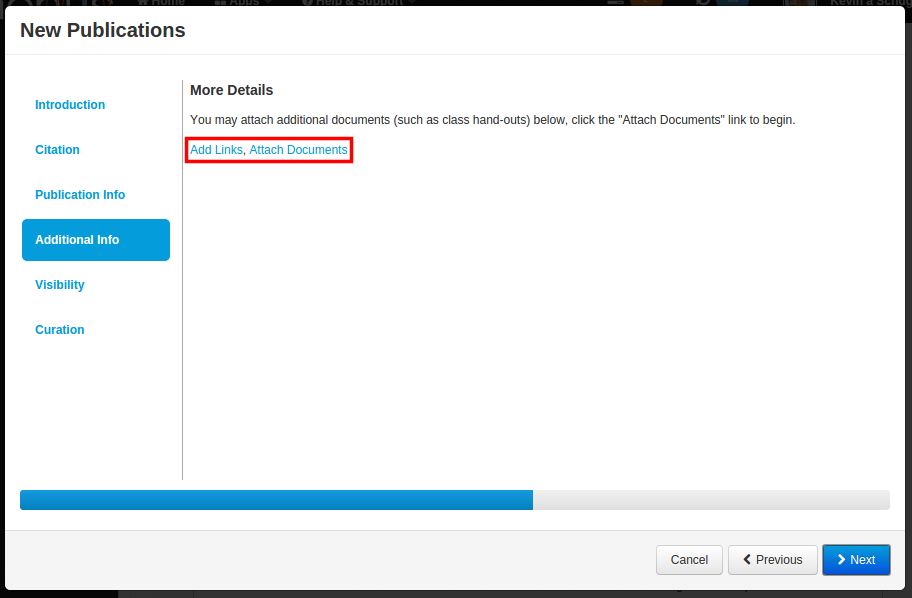
Step 4.3 : In sub-step “Additional Info” you can attach additional documents such as class hand-outs, click the “Attach Documents” link to attach additional document. Click “Add Links to add link for existing source which provides more details about particular publication.
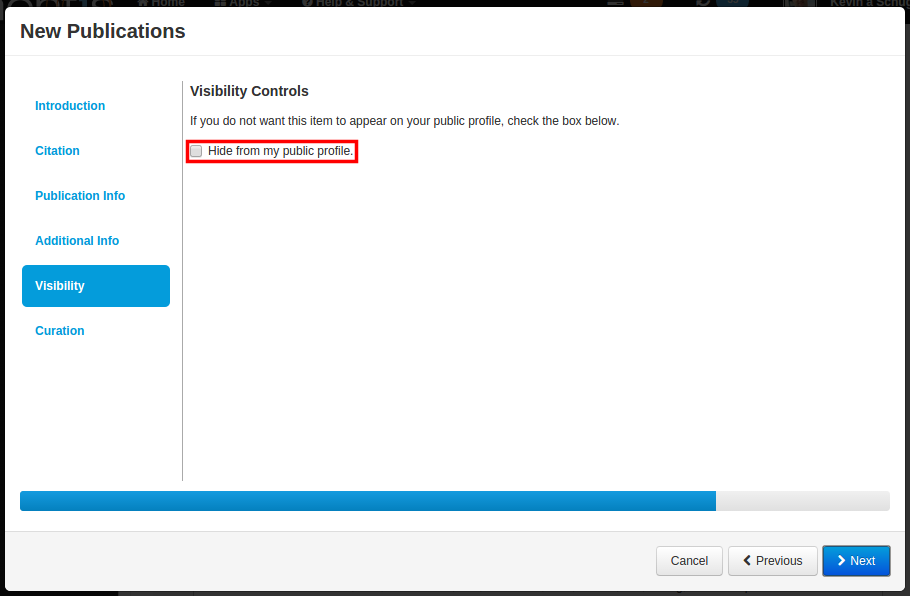
Step 4.4 : In sub-step “Visibility Controls” you can control the visibility of particular publication by using checkbox “Hide from my public profile”.
Step 4.5 : In sub-step “Curation” you can select which profile will display this data by moving their name to the right container from profiles which list you as a member of their organization. You can list this information on their profile page.
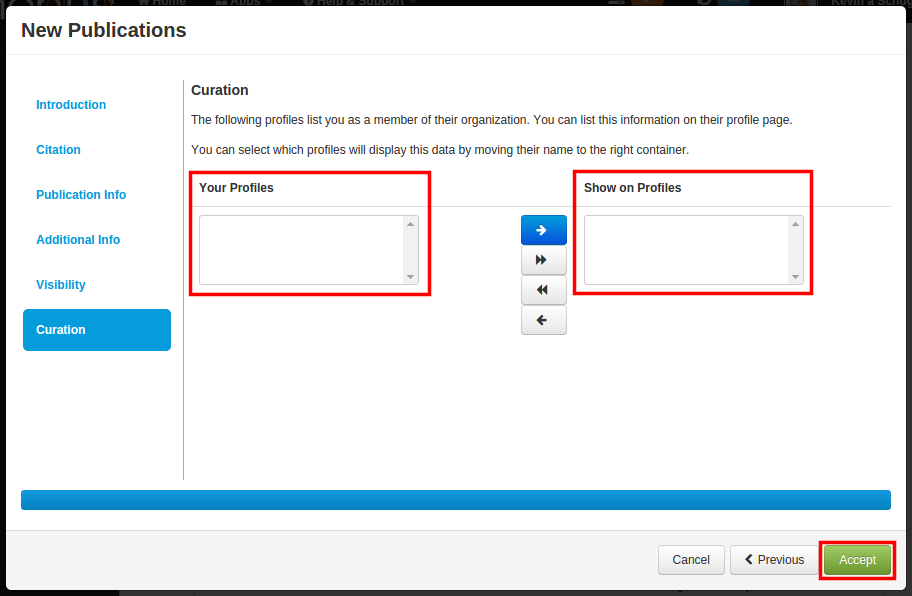
Step 5 : Now click on “Accept”. This would be displayed as your publication.
Comments
0 comments
Please sign in to leave a comment.