
Available Version Mentis 3.0.0 onwards
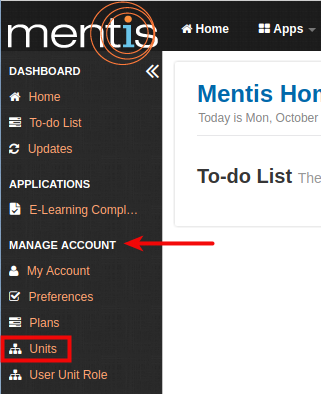
Manage units is now available under Manage Account. This article below walks you through the process of adding, editing or removing units for your organisations.
Important: Units are a system level configuration and affects role assignment, user profiles, program management etc. and therefore should be managed carefully and after reviewing the impact of the change across the system.
Manage Units
1. Select Units from the sidebar present under Manage Account.
2. Click on Add button present on the right-hand side.

3. In Create a new Unit, you need to add Name (1), Types (2) as Academic, Administrative, Center, Department, Other, Program, School/College, Sponsor and University, Parent (3), and Acronym (4).
Note: i) For adding different Parent unit please refer point 4.
ii) If the unit is added through this manage page, by default marked as Active and Verified.
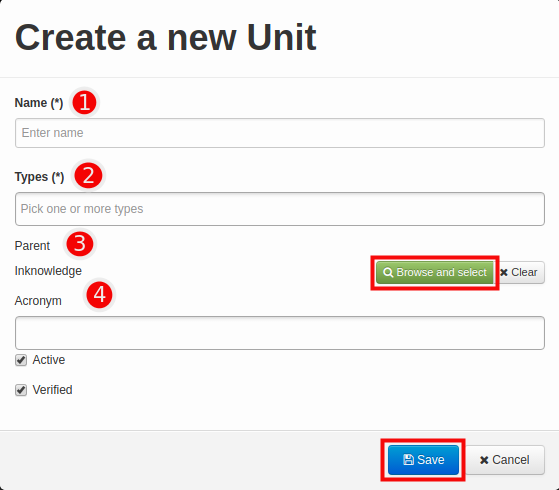
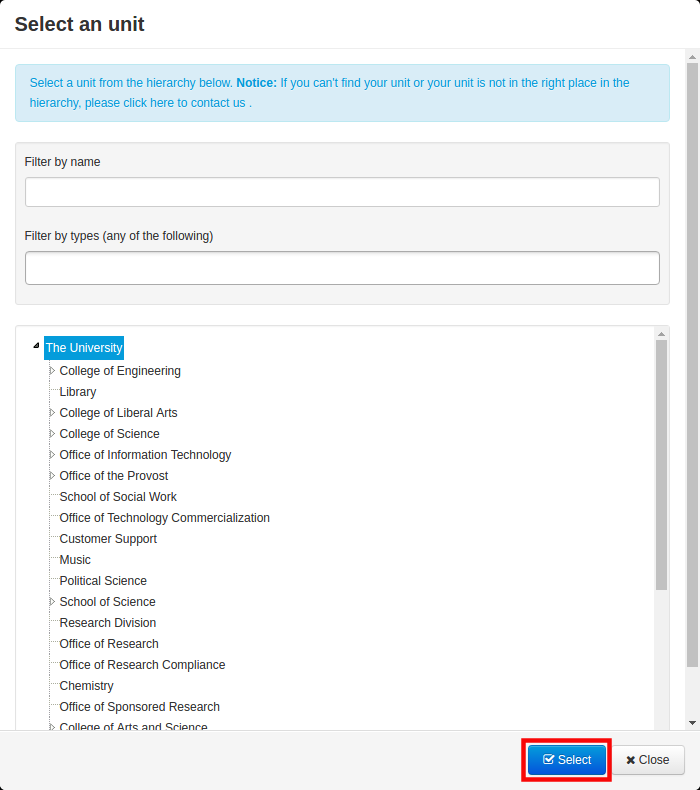
4. For adding Parent, please click on Browse and Select. Select the particular parent unit and click on Select button.
Note: You can filter the Parent Unit by name and types.
5. Click on Save. This will be displayed as Unit.
Edit or Delete Unit
You can edit or delete a particular unit using the edit or delete button present under Actions. While deleting a particular unit please make sure that unit is not used anywhere.

Searching for a specific unit
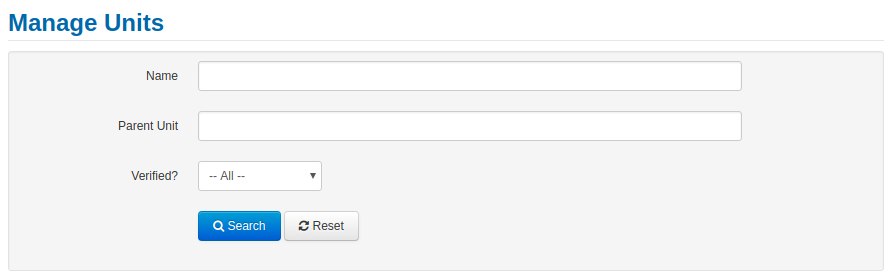
You can search and find units by using search options for name, parent unit and verified.
Comments
0 comments
Please sign in to leave a comment.