
Available Version Mentis 3.0.0 onwards
Mentis can be easily branded for your organization using Manage preferences. The article below provides step by step instruction on how to update your organization's logo, add your address and turn off or turn on Mentis's built-in public portal - Explore.
Manage Preferences
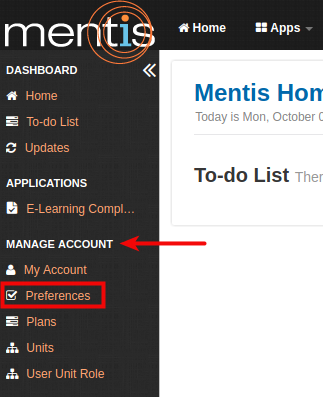
1. Select Preferences from the sidebar present under Manage Account.
2. In Manage System Preferences, you need to add University Name (1), University Abbreviation (2), Logo (3), University URL (4), Country (5), Street Address (6), City (7), State (8), Zip (9), Turn on Explore (10) and Timezone (11).
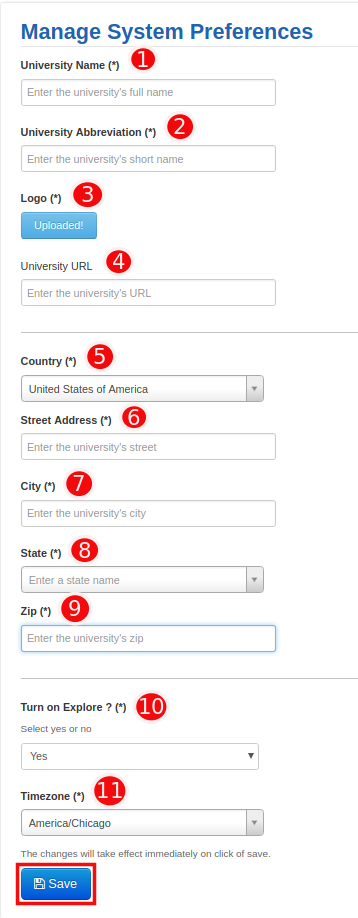
3. Click on Save. The changes will take effect immediately on click of save.
| Please Note: Explore is Mentis's built-in public search and browse portal. Various browsing options for profiles, programs etc. are available here. By turning Explore, on or off, you are taking this portal online or offline respectively. This can affect your visitor experience. Please check for any advertised links that may be pointing to this portal from your websites before taking this action. |
Comments
0 comments
Please sign in to leave a comment.