
Here you can add or edit expense categories, which is used in expenditure for a particular program under State Authorization.
Adding a new expense category record
Once inside the ELC app, select Expense Categories present under Data from the sidebar.

1. Click on Add button present on the right-hand side.

2. In Create a new expense category you need to add details in Expense Category(1) and Description(2). You can also mark a particular expense category as verified using appropriate checkbox.
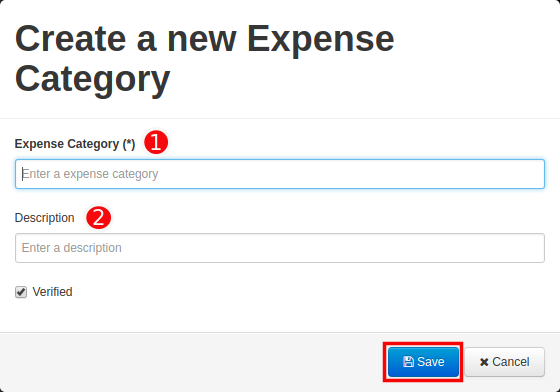
Note: Always use checkbox Verified, so that it would be seen as expense category option in expenditure under State Authorization.
3. Now click on Save. This will be displayed as Expense Category.
Editing or removing expense category
You can edit or delete any expense category using Edit or Delete button present under Actions.

Reviewing expense categories
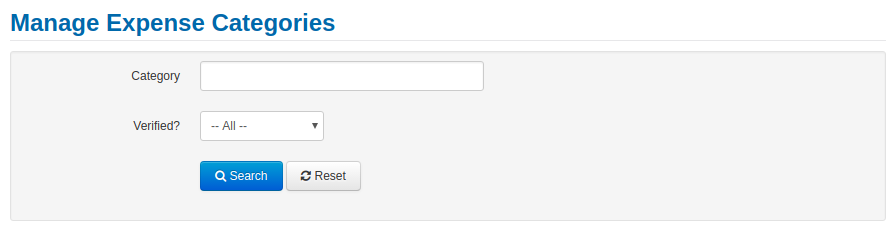
You can review and manage state authorization using search options for category and verified status present under Manage Expense Categories.
Known issue: There are no stop-checks warning you or stopping you from entering duplicate records. We are working on this issue and will be resolved in a future release.
Comments
0 comments
Please sign in to leave a comment.